

Yes, Pictory does live up to its hype for various use cases. It is one of the most well-known AI tools out there among all major ones. It is important to know that just because tools feature AI video generation doesn’t mean they all produce the same results. That is why I always say: each tool is unique and serves its own purpose.
What you’d use for creating viral social media clips is not what you use for creating educational content. Therefore, it’s important to do your own research before purchasing any tool. But hey, you don’t have to do all that, as I have done all the hard work for you.
Make sure you go through my review article if you’re unsure about getting Pictory, or skip to the conclusion if you’re too lazy to read it.
Pictory Text-to-Video
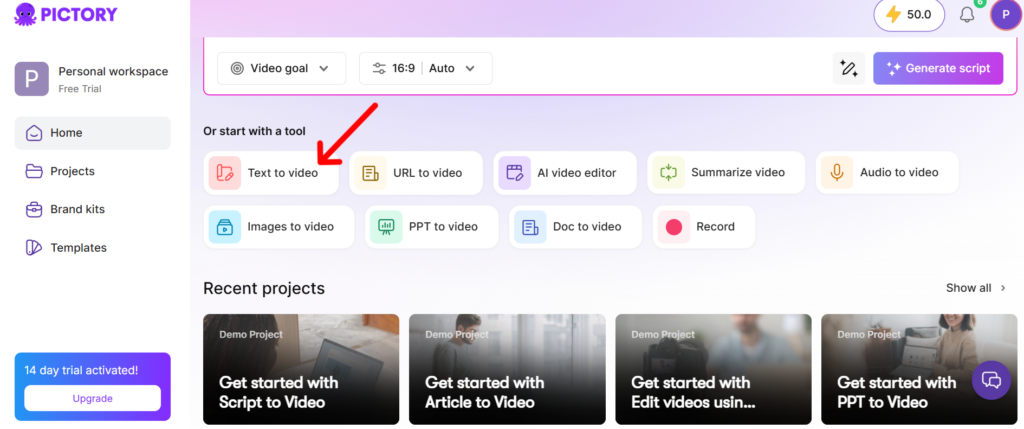
AI video generation using text prompts is the most in-demand feature in generative AI today. Creating social media or educational content is one of the popular use cases for this tool.
What I’m impressed with: There is no need to write a detailed prompt. As you can see, all you need to do is describe what you want and click on ‘Generate Script’. You can make any changes or adjustments to this script, select video preferences, and then generate the video.
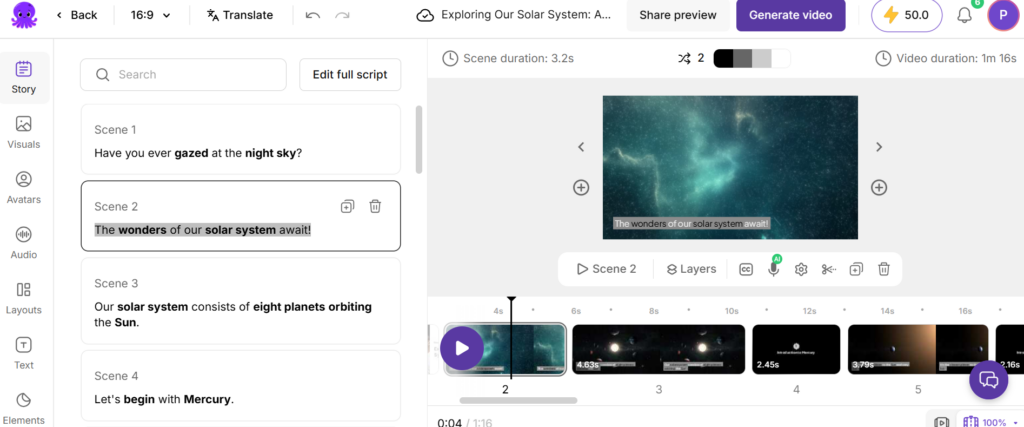
Here is a video I created with Pictory which shows the solar system and all the planets in it. All I did was provide 1 sentence describing what I want, and it generated an entire script.
As you can see, it has broken down each sentence as a separate scene. You can also add AI voice-overs and trim the video in any way you like.
Key Points to Note:
- You can see the AI video generation feature in the main menu itself. You just need to look for the ‘Text to video’ feature as displayed above.
- It is Pictory’s most popular generative AI feature.
- You can also generate videos with realistic 3D avatars.
- You can try out the free trial for Pictory by clicking the link below. Also, make sure you use a verified Pictory coupon at checkout to get the plan at a lower price.
Generating Videos from Images
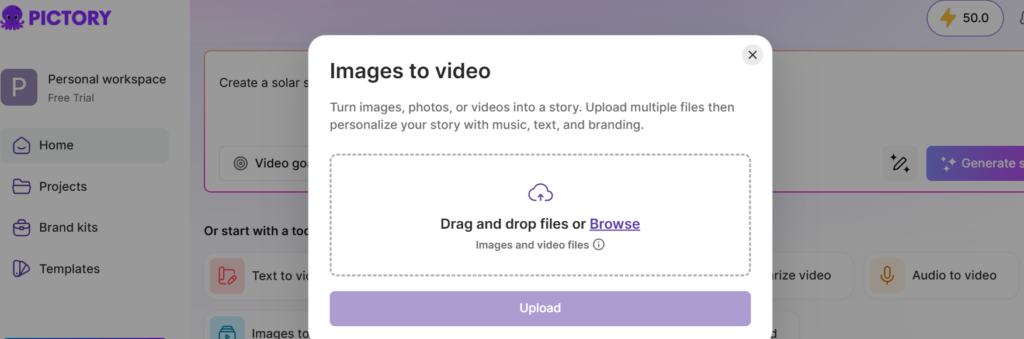
For those who don’t know, there are more ways to generate AI videos other than text. Using text to create videos can be very hard. This is where Pictory’s Images-to-video feature comes in. As shown in the above image, you will see this pop-up appear after selecting it from the main menu.
Now, just drop whatever images you have and proceed further.
Why is it great for animation artists:
- Artists can create mock scenes by adding their character designs.
- Gaming studios can get cutscene or gameplay ideas for their character.
It is also great for social media content creators to create short viral clips.
Important Note: Make sure you don’t use copyrighted images to create videos if you plan to use them commercially.
URL-to-Video: What Is This?
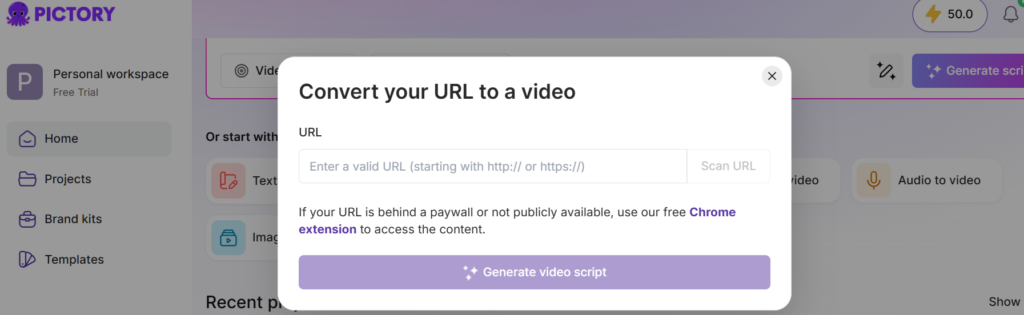
URL-to-Video is suited for users who want to turn long-form content into videos. Bloggers who already have a huge archive of content can scale their content creation for all social platforms.
What it does: Generates a script/prompt based on the URL provided before generating the final video. You will need to select a video type such as: explainer, marketing, tutorial, or internal communication.
Is the AI voice-over quality any good? Yes, Pictory uses ElevenLabs, which is one of the leading AI voice-over platforms.
Benefits of Pictory URL-to-Video:
- Converting existing blog articles into videos.
- You can transform news articles into small clips that can be posted on platforms such as Instagram, YouTube, LinkedIn, and Snapchat.
- You can convert landing pages into video walkthroughs.
Audio-to-Video Tool
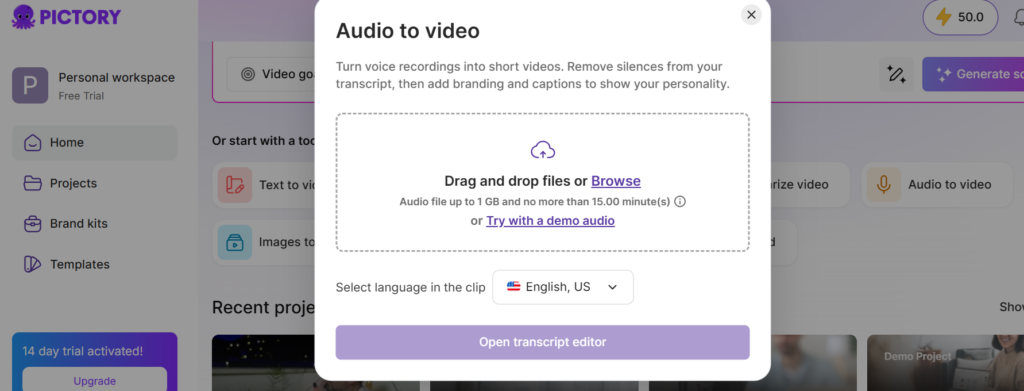
Using this tool is one of the best ways to generate animations for posting on social media platforms. The better the audio quality is, the better the end result will be. Just make sure you’re not using anyone’s voice without their consent. You can click the ‘Try with a demo audio’ option if you don’t have any audio recordings with you right now.
Main Highlights:
- This is great for voice-over actors creating videos from their existing recordings.
- Use their demo audio to find out how their tool works.
- Ensure that all the words spoken are clear and easily audible.
- You can import an audio file no longer than 15 minutes.
- Great for removing silences from your transcript.
PPT-to-Video
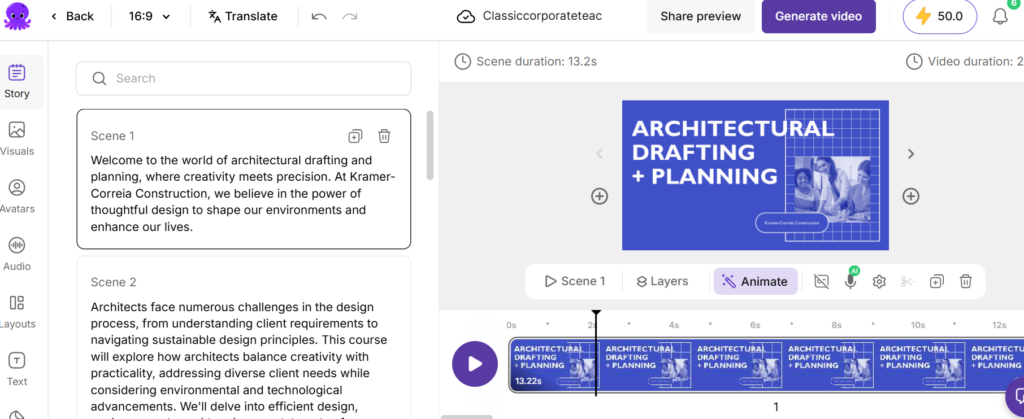
This is a unique AI tool that is popular among corporate professionals. All office professionals were limited to basic PowerPoint presentations before the rise of AI. It has become much easier now to create engaging videos with the PPT-to-Video features.
Steps to convert your presentation into a video:
Step 1: Select the PPT-to-Video feature as shown above.
Step 2: Drag and drop your files(Maximum 90 slides with a 50 MB size limit.
Step 3: Select your preferred language for voice narration(17 languages available, including English).
Step 4: Now, proceed and click the ‘Generate Video’ button.
Don’t have a PPT? Feel free to use their demo PPT to see how the tool works.
Doc-to-Video
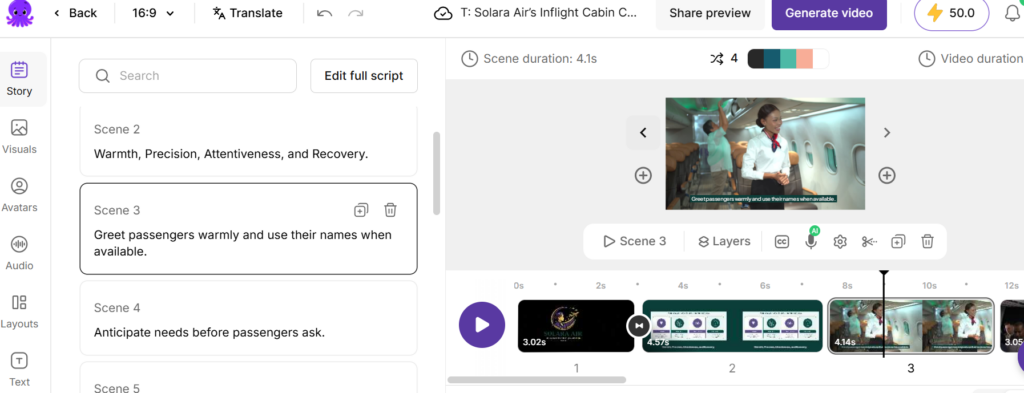
This is an AI video generation tool that considers documents as a prompt. You can see the video above, which I’ve generated using the sample PDF provided by Pictory. The Doc-to-Video tool will help you create training videos for new employees, tutorials, or any other long videos. This should clear up your confusion about choosing between the text-to-video and Doc-to-Video features.
I like using the text-to-video feature because it’s a more convenient option for me. On the other hand, I use the Doc-to-Video tool when I want to showcase a lot of things and details in the video.
Other Tools That Make Creating Content Easy
- AI Video Editor: Pictory AI video editor helps you add captions and branding to your video recordings. You can also create multiple short clips and post them on YouTube Shorts and Instagram Reels.
- Summarize Video: Helps you create summary clips and remove filler words from your videos. Remember, you can only add an audio and video file up to 1 GB, which is no longer than 15 minutes.
- Record: This built-in feature allows you to record through your webcam, webcam & screen, or screen only. It’s a great way to record investor pitches(with consent), interviews, or daily office meetings.
Don’t forget to use Pictory Brand Kits whether you’re an organization or a startup. It will help you store fonts, logos, AI voices, background voices, and other visual identities of your brand.
Annual Pricing:
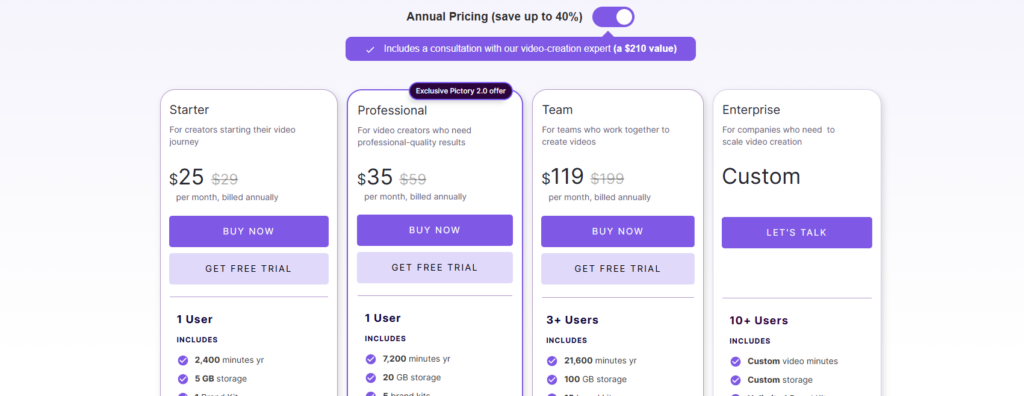
- Starter plan: $25/month(1 user)
- Professional plan: $35/month(1 user)
- Team plan: $119/month(3+ users)
- Enterprise plan: Custom pricing(10+ users)
In what ways are annual plans better?: As you can see above, annual subscribers can save up to 40% compared to monthly plans. This comes with a free consultation with a content creation expert($210 value). Monthly plans are great if you want to use the tool for no more than a couple of months, but you may end up paying more in the long term. This is why the annual pricing is designed to provide maximum savings as possible.
Example: The Professional plan is $35/month($420 annual billing), but $59/month on the monthly pricing(which is $708 per year). This means you will end up paying $288 more if you use the monthly Professional plan for 12 months compared to the annual Professional plan.
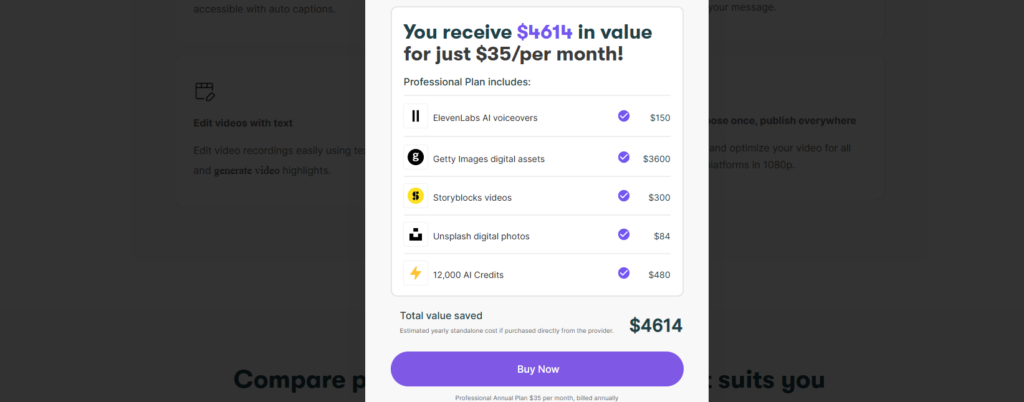
As shown above, you can expect $4614 in value with the annual Professional plan. This plan comes with ElevenLabs AI voiceovers for your content, digital assets from Getty Images, Storyblocks videos, Unsplash photos, and 12,000 AI credits, which is enough to generate a lot of AI content.
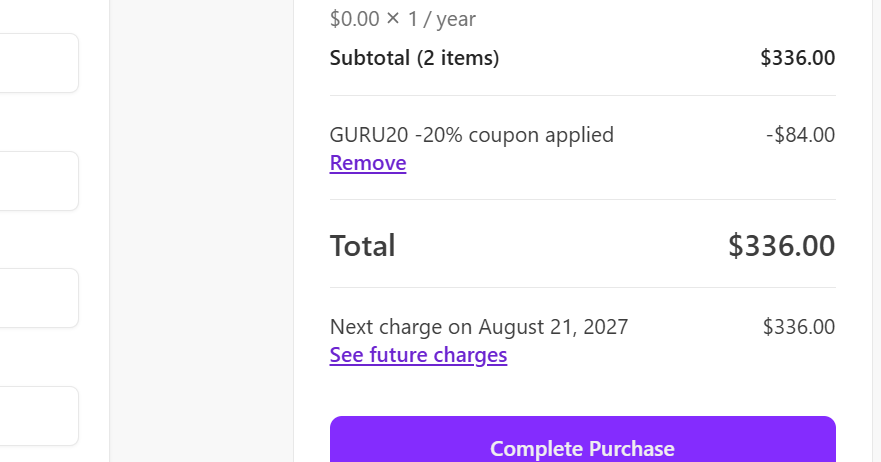
Above all that, you can paste our exclusive Pictory coupon code GURU20 at checkout to claim an additional discount. You can refer to the image below for this:
API Pricing:
- API Self-Serve: $79/month
- API for Enterprises(for scaling video creation): Custom pricing with a one-time setup fee. You also get priority access to new features with this plan.
Which plan would I recommend? I think the Professional plan is the best one to go with, as you get plenty of credits(not too few, not too many) and unlimited AI voices in 7 languages.
Does Pictory provide free trials? Yes, Pictory offers a free 14-day trial for their Starter, Professional, and Team plans.
Concluding Thoughts
Yes, Pictory is definitely worth checking out, especially if you are looking for generative AI tools at budget-friendly prices. Getting the team plan is the only viable option if you have more than 3 people in your startup or organization.
Make sure to visit the Pictory store on CouponzGuru for the latest coupons if you’re looking for additional discounts on subscription plans.